We have renewed the way OdooPLM licenses are activated. From today you can bind your licenses to your computers yourself, from our customer portal, at any time.
🖥️ 1. Read the Machine UUID of your PC
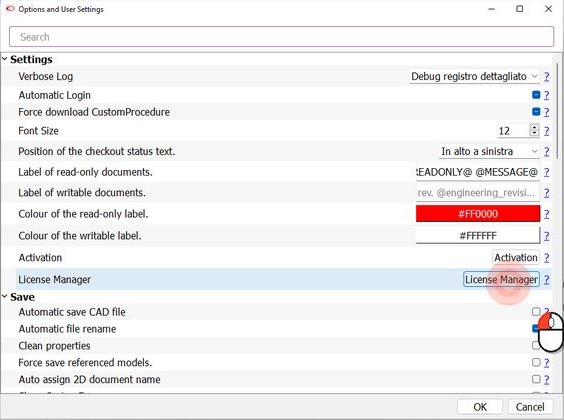
In your CAD (SOLIDWORKS in the pictures) open the OdooPLM options ("Options and User Settings") and click License Manager.
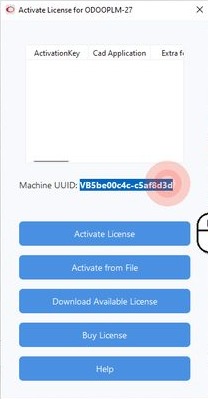
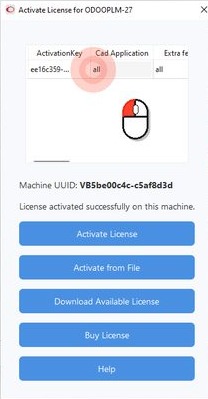
The "Activate License" window shows the Machine UUID of the computer. Select it, right-click and choose Copy.
🌐 2. Open your licenses on the portal
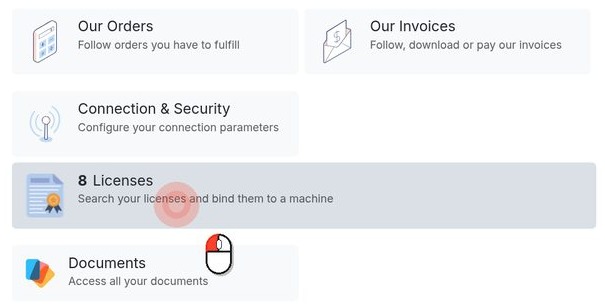
Log in to omniasolutions.odoo.com/my/home and click Licenses.
🔗 3. Bind the license to the PC
Find the license with status Activation Pending, paste the Machine UUID and click Validate.

The license is now bound to that computer and shows the Validated badge.

⬇️ 4. Download the license in the CAD
Back in the License Manager window, click Download Available License.
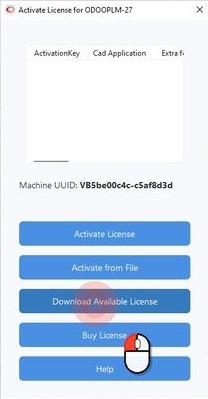
The message "License activated successfully on this machine" appears and the license is listed. Close the window and confirm with OK.
📴 No Internet on the CAD workstation?
After step 3, click Download on the portal to get the license file (.omnialic), then load it in the CAD with Activate from File.
🔄 New PC or license renewal
Every active license on the portal has a Renew button. Enter the Machine UUID of the new computer and, if you like, a note: the request reaches our support team, who will get back to you.
You can also set the email of each license's user and add a note, right from the portal.
No portal access yet, or any question? Write to info@omniasolutions.eu.
#OdooPLM #Odoo #PLM #CAD #SOLIDWORKS #License